A calm, verified guide to writing, producing, publishing and reading with Pen & Muse.
Guide
HOME
Updated
2026-08-14
Pen & Muse Manual
Pen & Muse is a press. Pen & Muse Studio is its author environment. This manual documents what the system does through real tasks, visible results and explicit boundaries.
The manual is both a product reference and a public record of the system being used properly. It is not a marketing performance and it does not treat every ordinary action as a breakthrough.
How to use this manual
Choose a guide by task or search for a feature.
Follow the verified sequence using a safe copy of a project when the action changes a manuscript or edition.
Use the verification checklist before treating the task as complete.
Read the boundaries when two similarly named workflows could be confused.
Current collection
This first edition contains the confirmed opening guides from orientation through the Studio-to-Store handoff. A complete chapter reading remains intentionally absent until a canonical chapter source and presentation are selected.
The governing distinctions
Living World is the author’s internal canon and world workspace.
Living Edition or Experience is the reader-facing enterable form.
Reader Mode is a Studio proofing surface; it is not the public Reader.
Preparing an edition sends a versioned edition for press review; it does not instantly publish it.
The manuscript remains canon. Tools can propose, organise and present; they do not silently rewrite authorial truth.
Artifact policy
Every confirmed guide records its video and useful companion assets. Links remain pending until the original files are downloaded or given durable public locations. The absence of a link must never be disguised with an invented one.
Quick browsing
Browse every video
14 verified guides, ready to watch here or open with their full instructions.
O01 · Studio Guides
What Pen & Muse Is
O02 · Studio Guides
Creating a Book Project in Pen & Muse
O03 · Studio Guides
Importing an Existing Manuscript into Pen & Muse Studio
O04 · Studio Guides
Editing a Difficult Passage with the Pen & Muse Line Editor
O05 · Studio Guides
Using Inline Autocomplete in Pen & Muse Studio
O07 · Studio Guides
Building and Reviewing Canon in Pen & Muse Living World
O08 · Studio Guides
Talking to a Manuscript Character in Pen & Muse Studio
O09 · Studio Guides
Turning an Alphabet Image into a Working Typeface in Pen & Muse Studio
O10 · Studio Guides
Planning and Inserting Chapter Illustrations in Pen & Muse Studio
O11 · Studio Guides
Creating Video for a Manuscript Passage in Pen & Muse Studio
O12 · Studio Guides
Auditioning and Casting Voices from a Manuscript in Pen & Muse Studio
O13 · Studio Guides
Previewing a Complete Book in Pen & Muse Studio Reader Mode
O14 · Making the Edition
Exporting and Checking an EPUB from Pen & Muse Studio
O15 · Making the Edition
From Studio Edition to Pen & Muse Store
Studio GuidesConfirmed complete
What Pen & Muse Is
Understand the two connected sides of Pen & Muse and the life of a work between them.
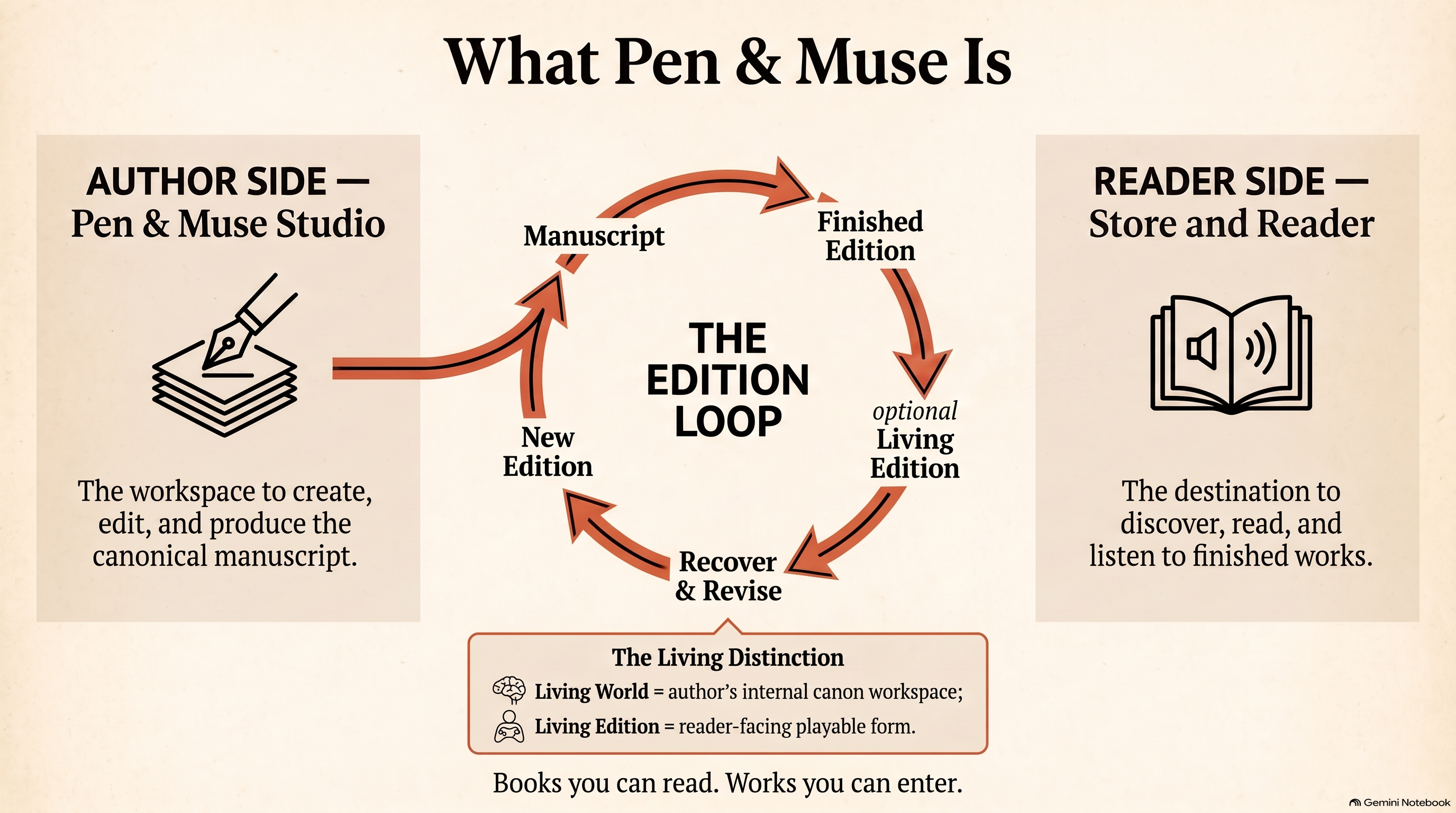
Pen & Muse joins an author environment to a curated press and reader experience. Studio helps authors develop, edit and produce a book. The Store presents the works the press has actually published.
The two sides
Pen & Muse Studio: create, organise, draft, edit, illustrate, narrate, proof and prepare a book.
Pen & Muse: discover, own or borrow published works, read them and—where designated—enter their Living Editions.
The edition loop: a Studio project becomes a prepared edition, the press reviews and applies it, and a published work can later return to Studio for a deliberate revision.
Important distinction
Living World is the author’s internal reference workspace. A Living Edition is a reader-facing experience. They are connected but not interchangeable. The manuscript remains canon.
Verification checklist
Both author and reader sides are represented.
Publication includes a press-controlled decision.
Living World and Living Edition remain distinct.
Artifacts
Video:What Pen & Muse Is, 1:14, two sources.
Infographic:Author and Reader Workflow Diagram.
Slide deck:The Pen & Muse Ecosystem.
Studio GuidesConfirmed complete
Creating and Organising a Book Project
Create a clean book project and establish its basic identity before drafting.
Guide
O02
Video
1:06
Updated
2026-08-14
Watch and download
Creating a Book Project in Pen & MuseVideo · 3.8 MB
Creating and Organising a Book Project
Create the project before asking the manuscript, media or publishing tools to do any work. A clear title, author identity and chapter structure make every later stage easier to inspect.
Before you begin
Know whether this is a new book or an existing manuscript that should use Smart Import.
Have a working title and author name.
Procedure
Begin in the Studio Library and create a book project.
Add the project title and author details.
Create or name the first chapter.
Check that the project and chapter names are visible in the correct places.
Save before moving into drafting or specialist tools.
What this does not do
Project creation is not Smart Import, cloud recovery, Store-book recovery, drafting or publication. Those are separate workflows.
Verification checklist
The project appears in the Library.
Title, author and first chapter are correctly identified.
No existing manuscript was accidentally replaced.
Artifacts
Video:Creating a Book Project in Pen & Muse, 1:06, one Studio source.
Studio GuidesConfirmed complete
Importing an Existing Manuscript
Bring existing prose into a new Studio draft, review the detected structure and confirm that the manuscript remains intact.
Guide
O03
Video
1:07
Updated
2026-08-14
Watch and download
Manuscript Import Quick Reference GuideInfographic · 3.9 MBImporting an Existing Manuscript into Pen & Muse StudioVideo · 3.9 MB
Importing an Existing Manuscript
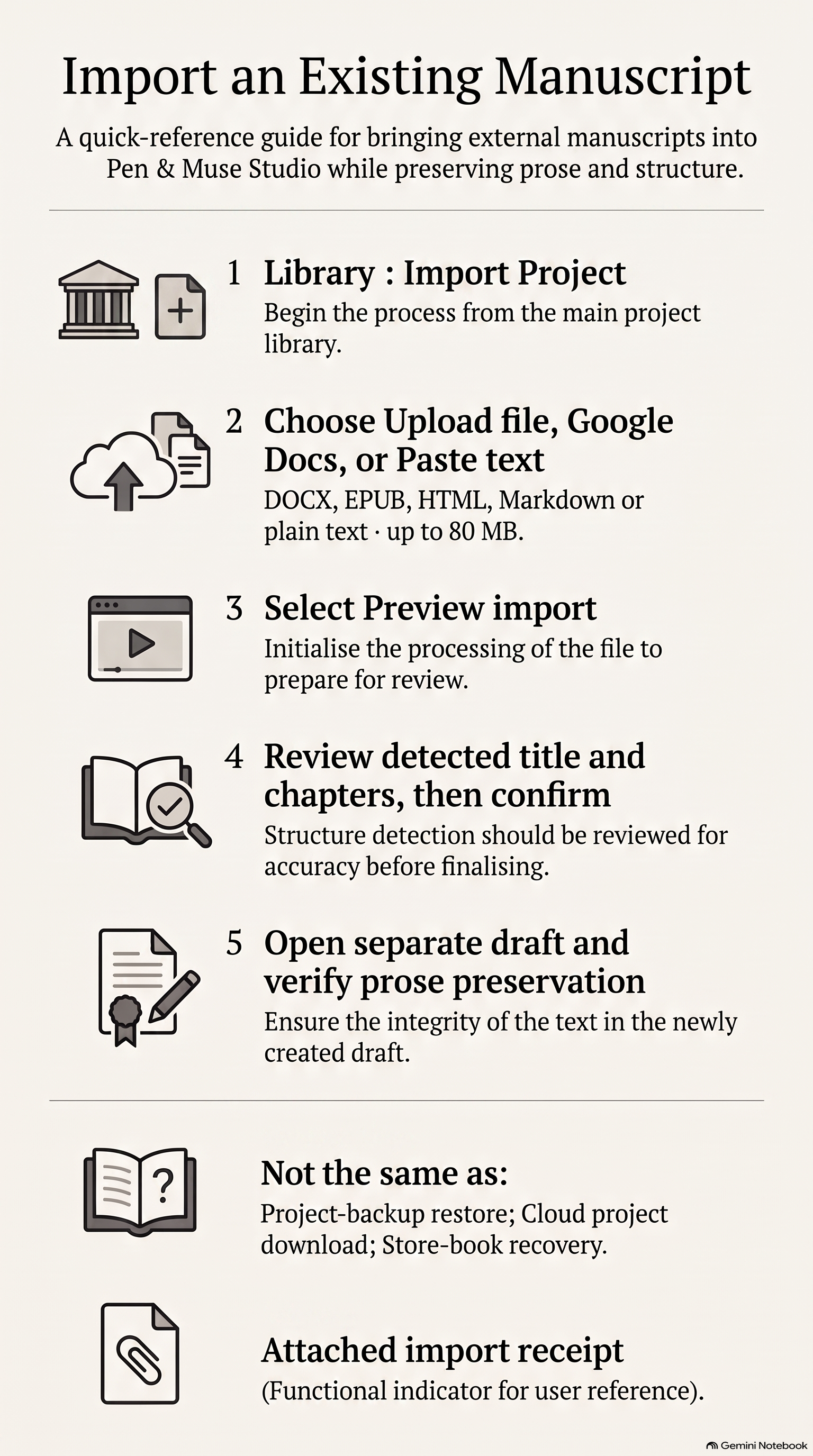
Smart Import brings an existing manuscript into a new Studio draft. It detects likely titles and chapter divisions, but the author still reviews the result.
Before you begin
Prepare a supported file or a clean text source.
Keep the original manuscript available for comparison.
Procedure
In the Library, choose Import Project.
Upload the manuscript, connect the supported document source or paste text.
Choose Preview import.
Review the detected title and chapter structure.
Confirm the import only when the proposed organisation is acceptable.
Open the new draft and compare representative passages with the source.
What this does not do
This is not project-backup restore, cloud project download or Store-book recovery. Detection is useful, not infallible.
Verification checklist
All expected chapters are present and ordered.
Representative opening, middle and closing prose remains intact.
The original source has not been altered.
Artifacts
Video:Importing an Existing Manuscript into Pen & Muse Studio, 1:07, one Studio source.
Review a proposed line edit against the exact current passage and apply it only after comparison.
Guide
O04
Video
1:17
Updated
2026-08-14
Watch and download
Guide to Using Line EditorInfographic · 3.6 MBEditing a Difficult Passage with the Pen & Muse Line EditorVideo · 5.0 MB
Editing a Difficult Passage with the Line Editor
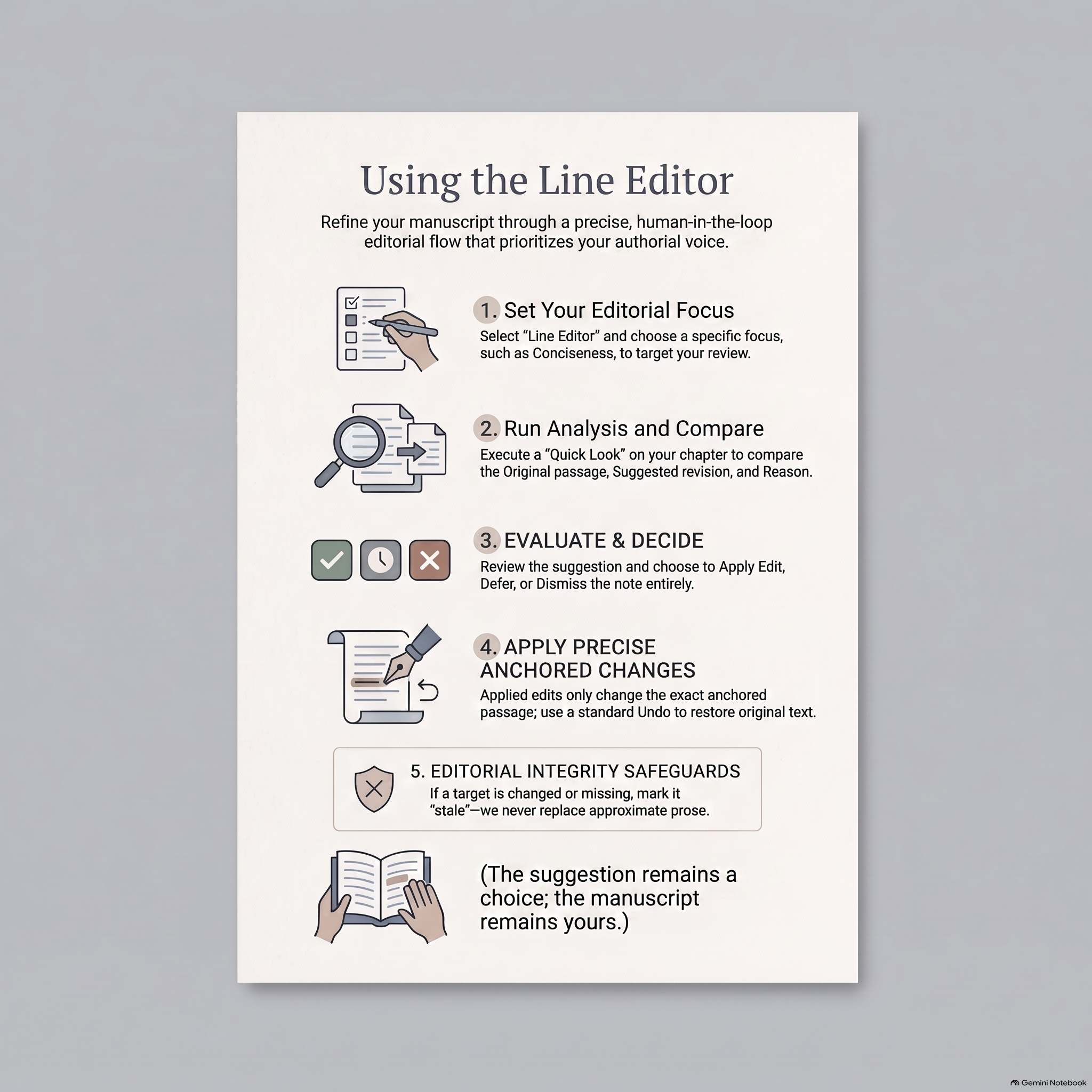
The Line Editor proposes a revision to a specific passage. It does not silently rewrite the manuscript.
Procedure
Select or focus the passage that needs attention.
Open the Line Editor and ask for a focused editorial review.
Use Quick look to compare the original and proposed wording.
Choose Apply, Defer or Dismiss deliberately.
If applying, confirm that the exact current passage is the one replaced.
Use Undo if the result should not remain.
What this does not do
A suggestion is not an accepted edit. If the source passage has changed or cannot be found exactly, the edit should fail safely rather than replacing approximate prose.
Verification checklist
The original and revision were compared.
Only the intended passage changed.
Undo restores the original.
Artifacts
Video:Editing a Difficult Passage with the Pen & Muse Line Editor, 1:17, one Studio source.
Infographic:Guide to Using Line Editor.
Studio GuidesConfirmed complete
Using Inline Autocomplete While Writing
Receive a short cursor-level continuation, accept it with Tab or reject it without changing the prose.
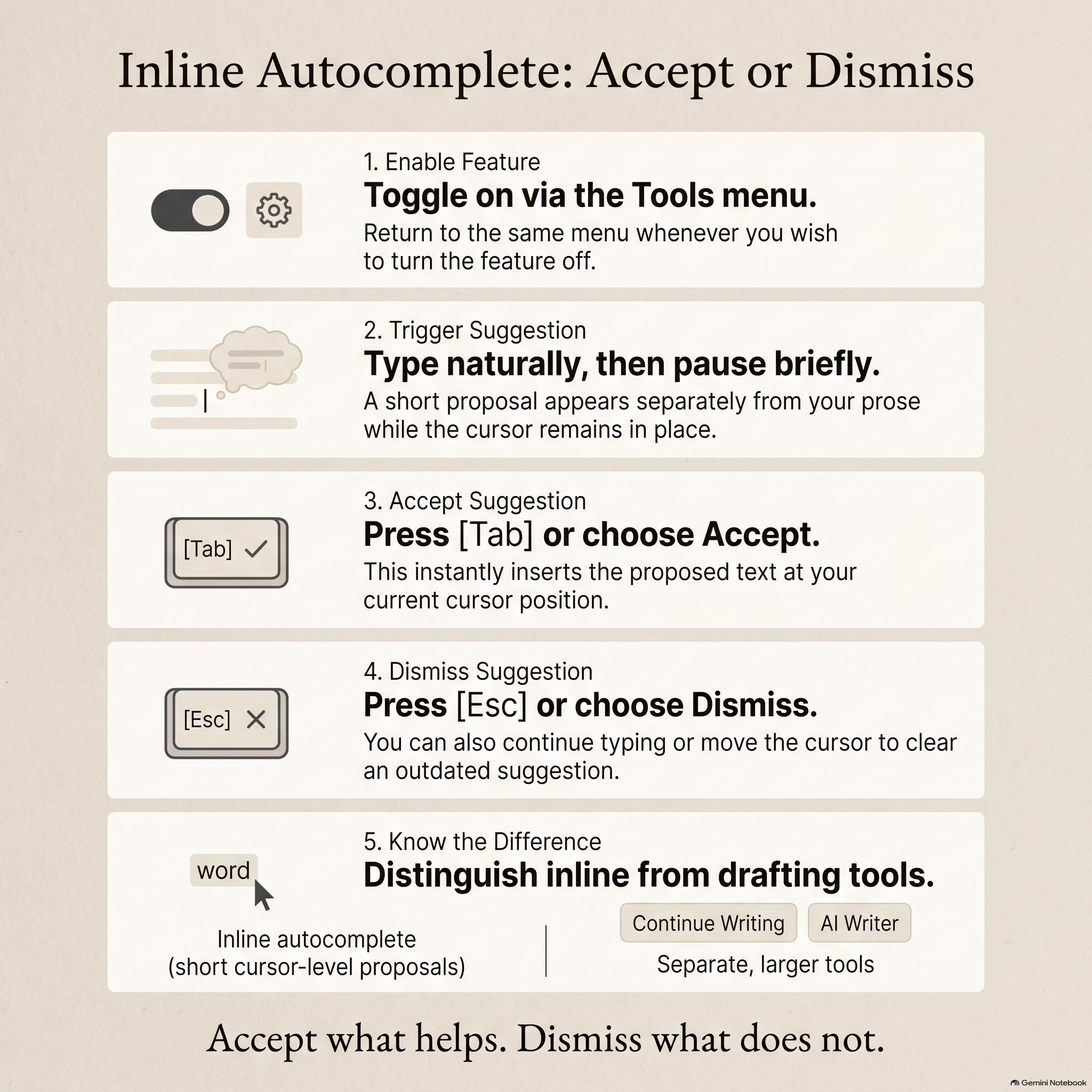
Inline autocomplete offers a short continuation at the cursor after sufficient forward typing and a brief pause. The proposal remains separate from manuscript prose until accepted.
Procedure
Enable Inline autocomplete from Tools.
Write forward naturally in the manuscript.
Pause with the cursor at a suitable continuation point.
Review the separate proposal.
Press Tab or choose Accept to insert it.
Press Escape or choose Dismiss to reject it.
What this does not do
This is not Continue Writing, AI Writer or chapter drafting. Cursor movement, further editing or stale context can clear a proposal. Deleting text does not summon it.
Verification checklist
The proposal remains separate before acceptance.
Tab inserts only when the manuscript editor owns the suggestion.
Escape dismisses without changing the prose.
Artifacts
Video:Using Inline Autocomplete in Pen & Muse Studio, 1:13, one Studio source.
Infographic:Inline Autocomplete Usage Guide.
Studio GuidesConfirmed complete
Building and Reviewing Canon in Living World
Review proposed world facts and accept only the material that belongs in the author’s internal reference.
Guide
O07
Video
1:24
Updated
2026-08-14
Watch and download
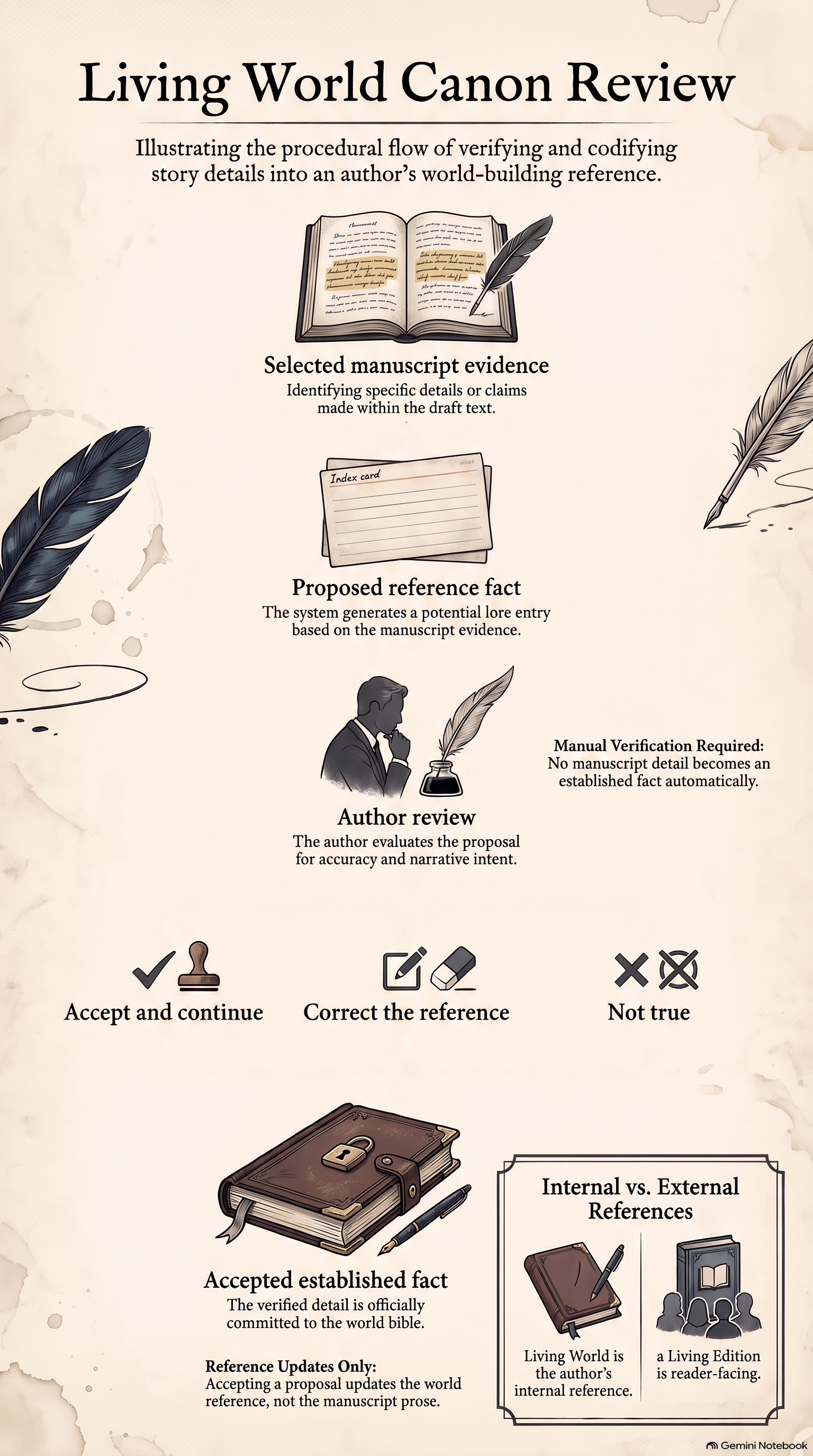
World-Building Canon Review ProcessInfographic · 5.2 MBBuilding and Reviewing Canon in Pen & Muse Living WorldVideo · 5.3 MB
Building and Reviewing Canon in Living World
Living World is the author’s internal reference workspace for accepted facts, rules, places, people and relationships. The selected manuscript remains authoritative.
Procedure
Open Living World from the current project.
Review material proposed from the selected manuscript.
Compare each proposal with the actual prose and existing accepted reference.
Accept only facts that are explicit and useful.
Reject, defer or correct speculation and contradiction.
Confirm that the accepted reference appears in the intended world section.
What this does not do
Accepting a proposal updates the reference; it does not rewrite manuscript prose. Living World is not the reader-facing Living Edition.
Verification checklist
Every accepted fact is supported by the manuscript.
Speculation remains separate from accepted canon.
Manuscript prose has not changed.
Artifacts
Video:Building and Reviewing Canon in Pen & Muse Living World, 1:24, one Studio source.
Infographic:World-Building Canon Review Process.
Studio GuidesConfirmed complete
Talking to a Manuscript Character
Interview a manuscript character within the knowledge and perspective available to that character.
Guide
O08
Video
1:08
Updated
2026-08-14
Watch and download
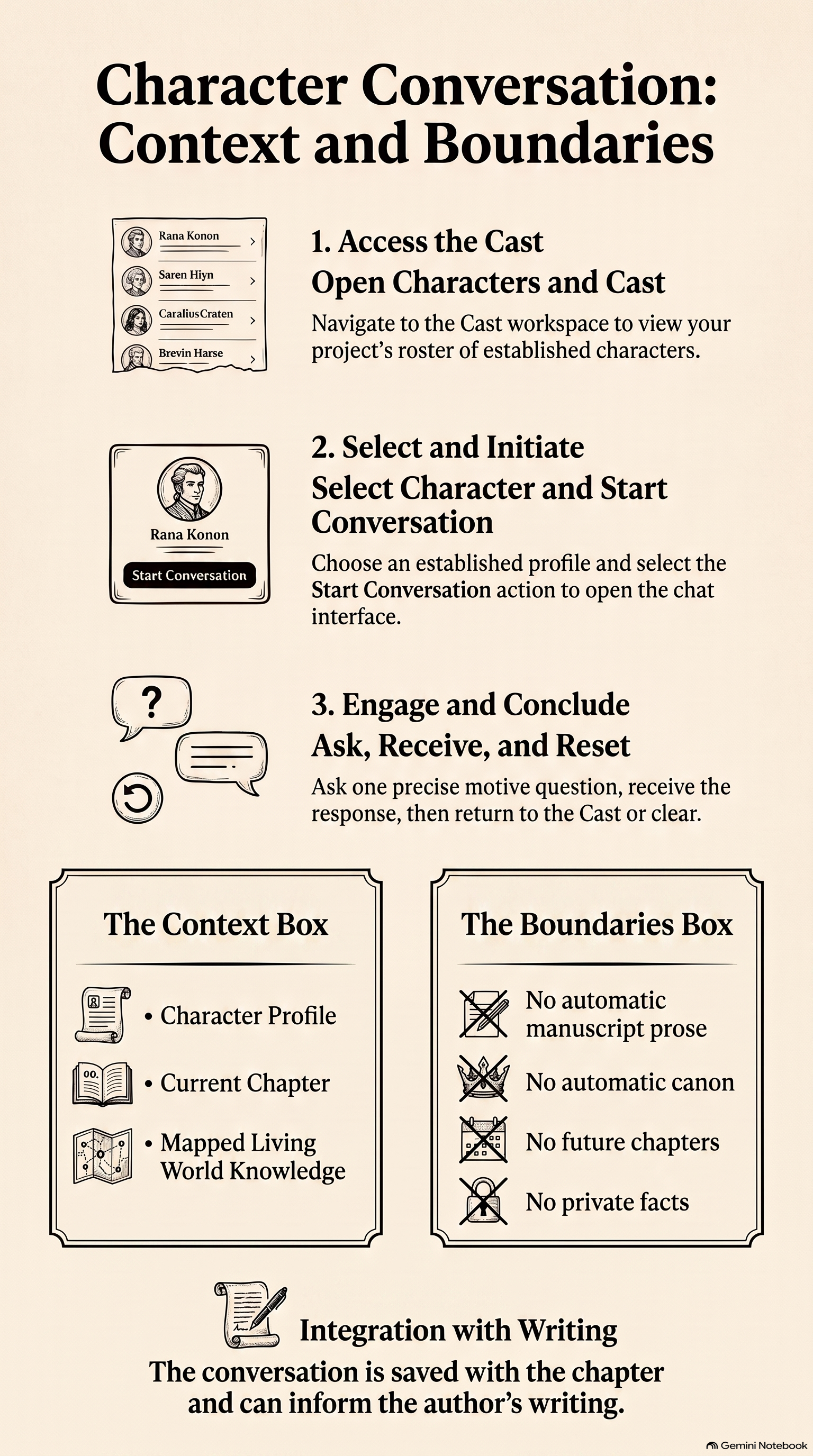
Character Conversation Context and BoundariesInfographic · 4.9 MBTalking to a Manuscript Character in Pen & Muse StudioVideo · 4.8 MB
Talking to a Manuscript Character
Character Chat is a writing instrument for testing motive, perspective and voice. A character’s response is not canonical testimony.
Procedure
Open the character from the current project’s cast.
Start Character Chat from the manuscript context you want to examine.
Ask a focused question about motive, knowledge or a decision.
Compare the answer with the character profile, current and earlier manuscript context, recent dialogue and mapped Living World scope.
Use useful insight as material for the author to judge—not as an automatic change.
What this does not do
The character must not know future chapters, author-only facts or information outside their established scope. A convincing answer does not make a new fact canon.
Verification checklist
The response fits the character’s available knowledge.
Future or private author information did not leak.
No manuscript or canon record changed automatically.
Artifacts
Video:Talking to a Manuscript Character in Pen & Muse Studio, 1:08, one Studio source.
Infographic:Character Conversation Context and Boundaries.
Studio GuidesConfirmed complete
Turning an Alphabet Image into a Working Typeface
Convert a complete alphabet sheet into an editable, testable and exportable font.
Guide
O09
Video
1:15
Updated
2026-08-14
Watch and download
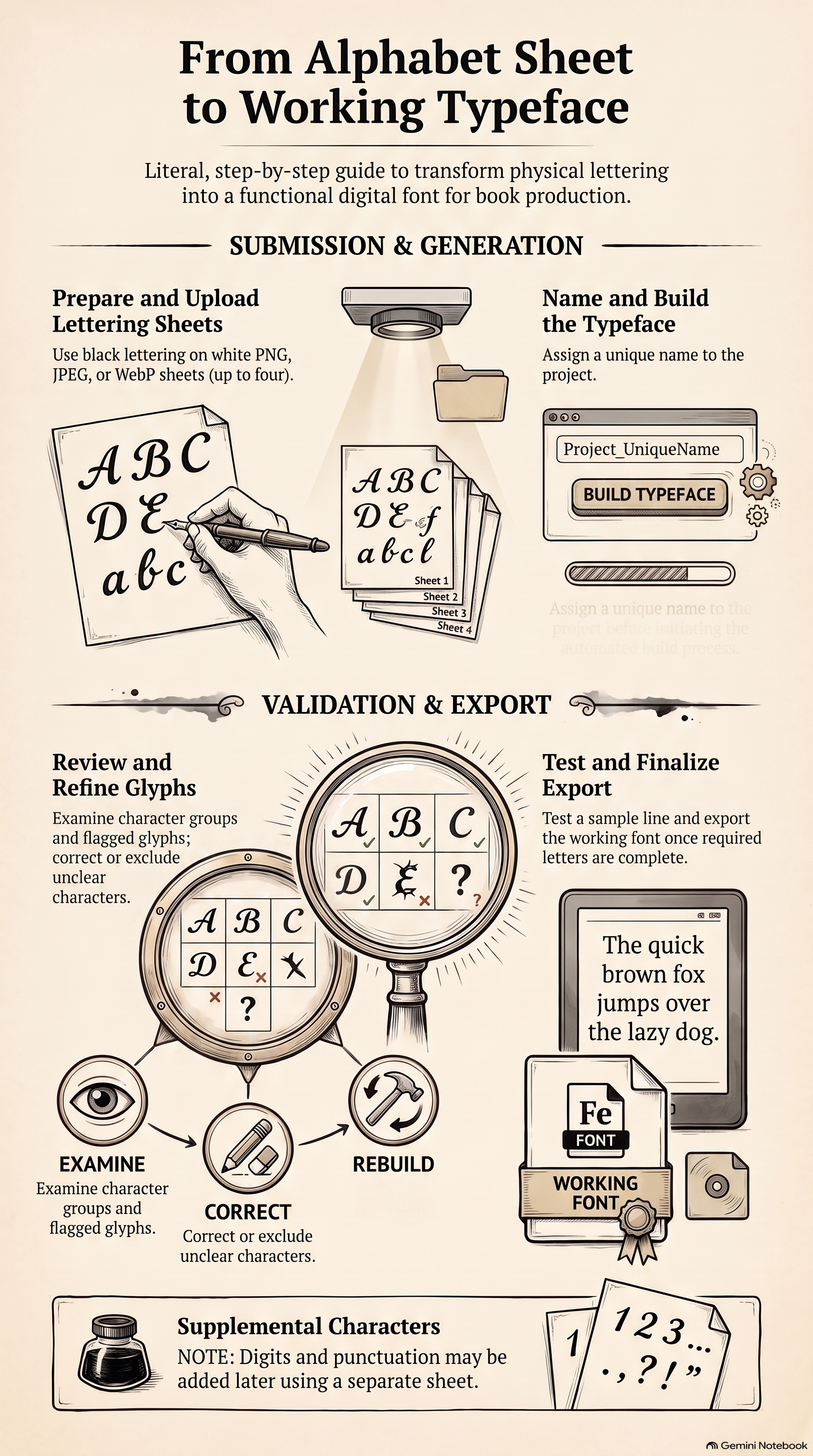
Typeface Creation Process GuideInfographic · 5.5 MBTurning an Alphabet Image into a Working Typeface in Pen & Muse StudioVideo · 5.5 MB
Turning an Alphabet Image into a Working Typeface
Fontmaker converts lettering into a functioning typeface only after the captured characters have been reviewed and corrected.
Before you begin
Use a clear, complete alphabet sheet.
Expect digits and punctuation to need their own coverage where the first sheet does not contain them.
Procedure
Open Fontmaker and upload the alphabet image.
Let the Studio detect and separate the glyphs.
Review every character; move, exclude or replace incorrect captures.
Rebuild after corrections.
Test words and representative manuscript text.
Save the typeface to the project.
Export the working font file when required.
What this does not do
An attractive alphabet image is not automatically a finished font. Image generation and deterministic font construction are separate stages.
Verification checklist
Required letters are present and correctly mapped.
Test text is readable.
The saved project and exported font use the reviewed build.
Artifacts
Video:Turning an Alphabet Image into a Working Typeface in Pen & Muse Studio, 1:15, one Studio source.
Infographic:Typeface Creation Process Guide.
Studio GuidesConfirmed complete
Planning and Inserting Manuscript Illustrations
Plan an illustration from the manuscript, review the proposed placement and insert only the approved result.
Guide
O10
Video
1:17
Updated
2026-08-14
Watch and download
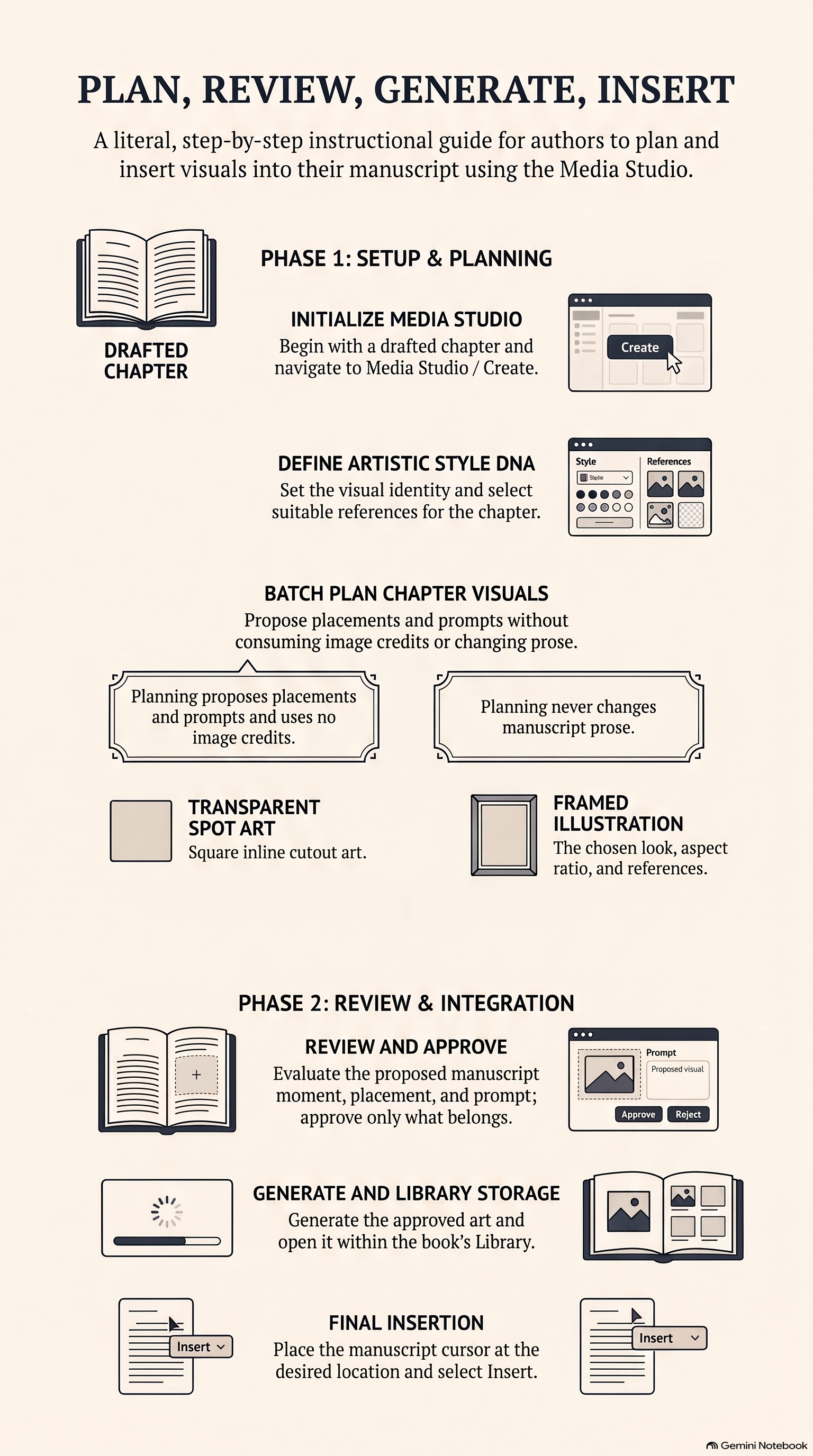
Manuscript Visual Planning and InsertionInfographic · 4.5 MBPlanning and Inserting Chapter Illustrations in Pen & Muse StudioVideo · 5.1 MB
Planning and Inserting Manuscript Illustrations
Visual planning identifies what an illustration should do and where it belongs before any image is generated.
Procedure
Open the manuscript passage or chapter that needs illustration.
Ask the visual planner for suitable moments and formats.
Review the proposed subject, placement and prompt against the prose.
Choose the appropriate route: transparent spot art or framed illustration.
Generate only after the plan is approved.
Inspect the result and insert it at the deliberate manuscript position.
Check the surrounding reading flow.
What this does not do
Planning is not generation and does not spend image credits. Transparent art and framed illustration are different production routes.
Verification checklist
The image serves the selected passage.
Prompt and placement were reviewed before generation.
The inserted result does not disrupt the prose.
Artifacts
Video:Planning and Inserting Chapter Illustrations in Pen & Muse Studio, 1:17, one Studio source.
Infographic:Manuscript Visual Planning and Insertion.
Studio GuidesConfirmed complete
Creating Video for a Manuscript Passage
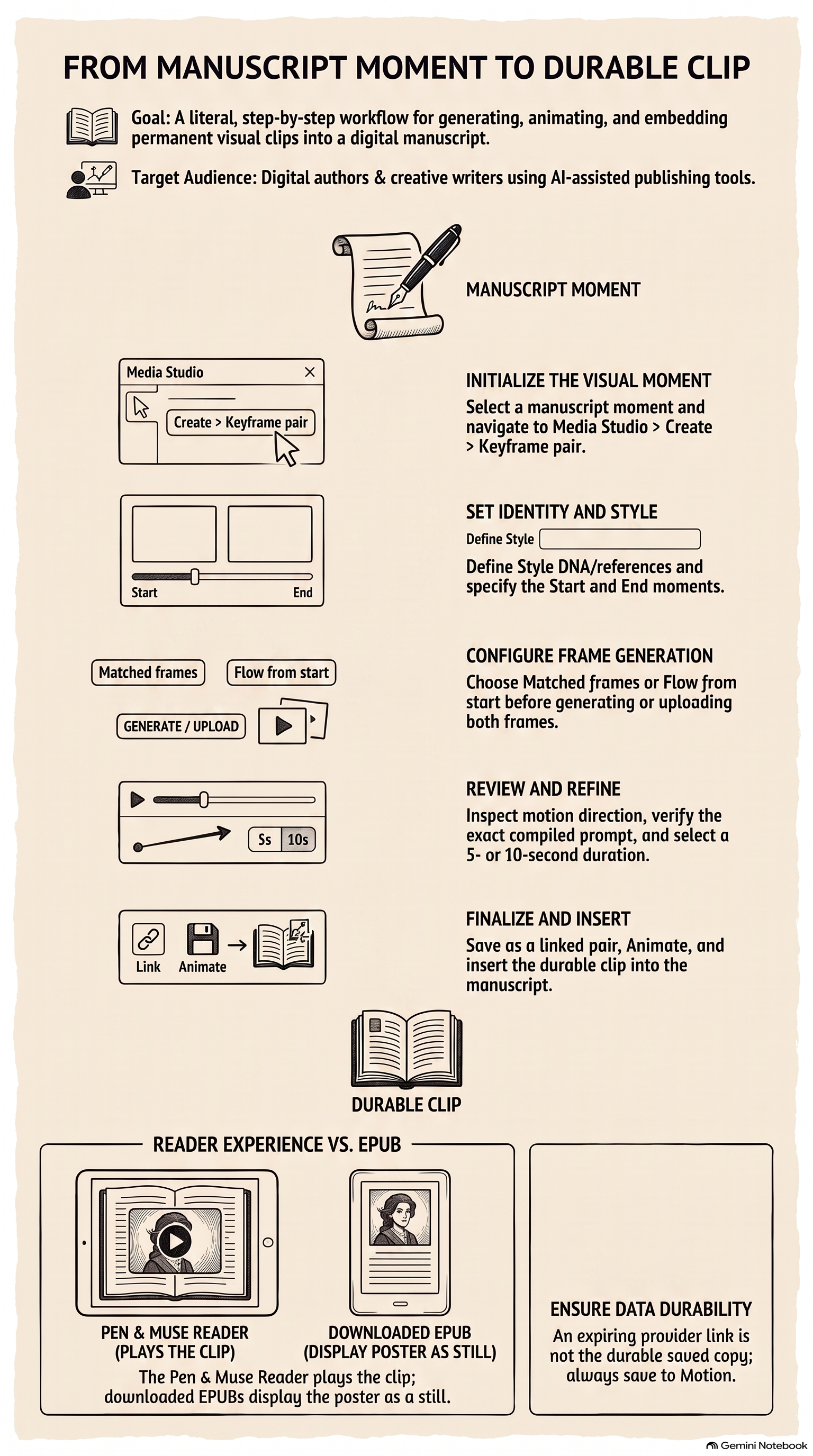
Animate an approved manuscript image, review the motion prompt and preserve a durable result with an EPUB fallback.
Guide
O11
Video
1:14
Updated
2026-08-14
Watch and download
Digital Manuscript Animation WorkflowInfographic · 4.4 MBCreating Video for a Manuscript Passage in Pen & Muse StudioVideo · 4.2 MB
Creating Video for a Manuscript Passage
A manuscript clip begins with an intentional still image and an author-reviewed motion instruction.
Procedure
Select the manuscript image that will act as the opening keyframe.
Open the video creation route for that image.
Review and edit the motion prompt.
Generate a short clip within the supported duration.
Inspect the result before attaching it to the manuscript.
Save the durable asset rather than relying on a temporary provider link.
Check playback in the Pen & Muse Reader and the still fallback used by EPUB.
What this does not do
The current route supports clips up to ten seconds. Ordinary EPUB does not preserve playable manuscript video; it retains a poster or still fallback.
Verification checklist
Motion begins from the intended image.
The clip is durably stored.
Reader playback and EPUB fallback are both understood.
Artifacts
Video:Creating Video for a Manuscript Passage in Pen & Muse Studio, 1:14, one Studio source.
Auditioning and Casting Narration from the Manuscript
Compare saved voices against the same manuscript passage and appoint only the cast the author approves.
Guide
O12
Video
1:20
Updated
2026-08-14
Watch and download
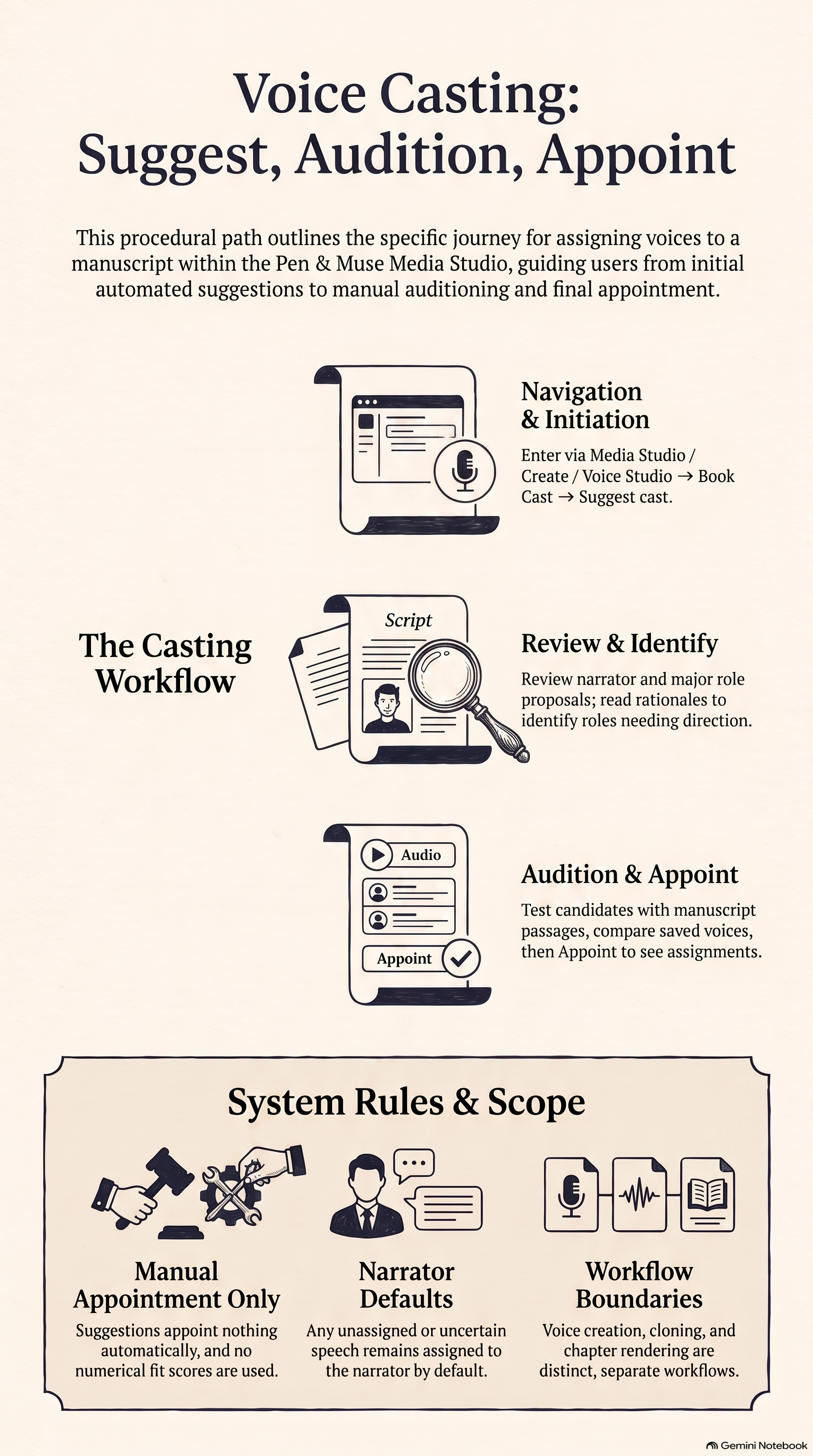
Voice Casting Procedural PathInfographic · 4.7 MBAuditioning and Casting Voices from a Manuscript in Pen & Muse StudioVideo · 6.1 MB
Auditioning and Casting Narration from the Manuscript
Casting Director can propose narrator and character matches. The author still auditions and appoints every voice.
Procedure
Open Media Studio, choose Create, then Voice Studio.
Begin in Book Cast and choose Suggest cast.
Review the proposed narrator, character matches, rationales and unresolved roles.
Open a role’s Audition.
Compare every candidate using the same short manuscript passage.
Choose the preferred voice and return to the proposal.
Select Appoint proposed cast only after the complete review.
What this does not do
Suggestions do not appoint automatically. No invented numerical score replaces artistic judgement. Uncertain or unassigned speech remains with the narrator.
Verification checklist
Every candidate used the same audition passage.
The rationale was considered without treating it as a decision.
Appointment required explicit author action.
Artifacts
Video:Auditioning and Casting Voices from a Manuscript in Pen & Muse Studio, 1:20, one Studio source.
Infographic:Voice Casting Procedural Path.
Studio GuidesConfirmed complete
Previewing the Completed Book in Reader Mode
Move through the complete book as a reader, inspect presentation and set the typography that also guides EPUB output.
Guide
O13
Video
1:12
Updated
2026-08-14
Watch and download
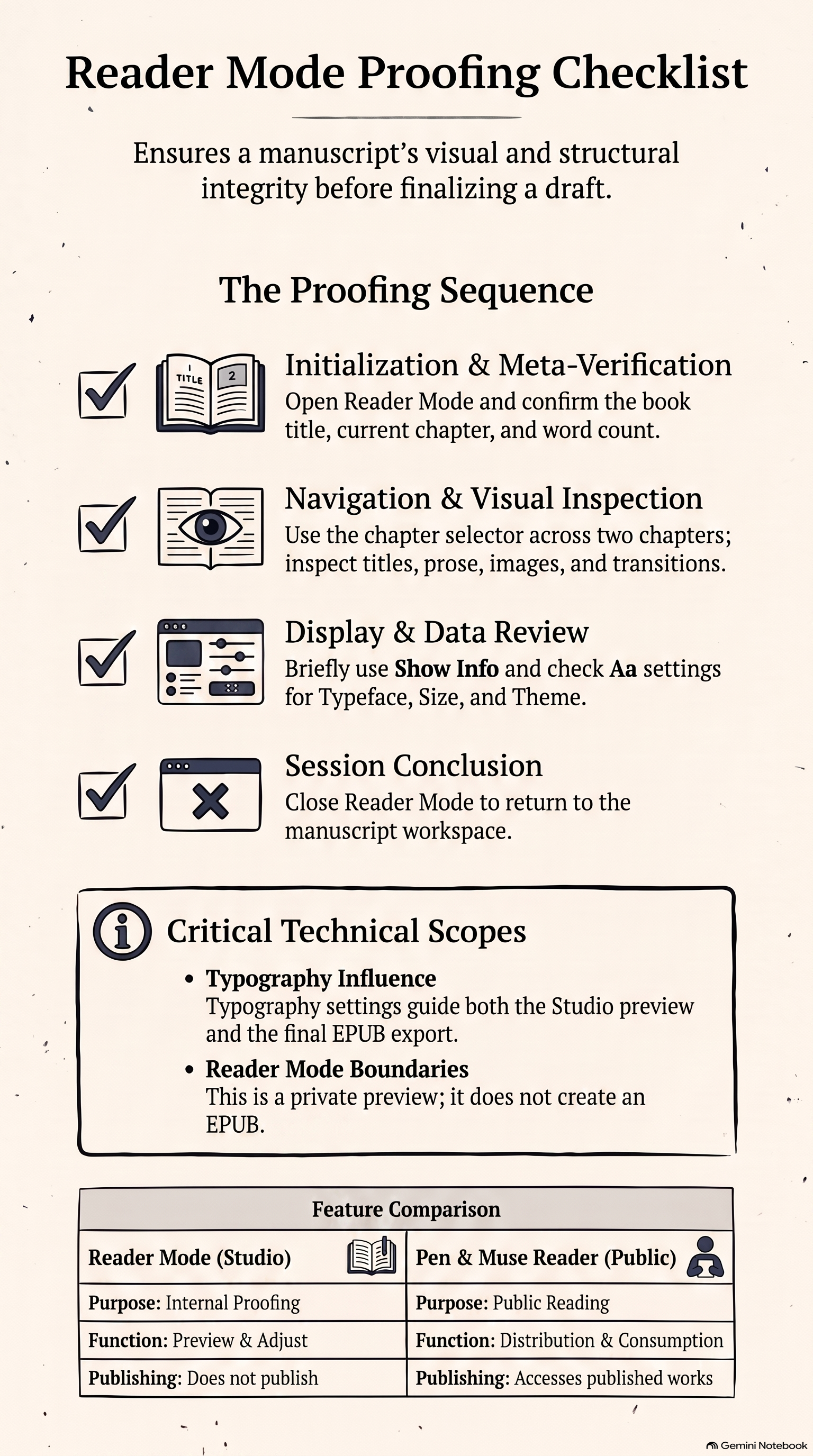
Reader Mode Proofing ChecklistInfographic · 4.6 MBPreviewing a Complete Book in Pen & Muse Studio Reader ModeVideo · 7.0 MB
Previewing the Completed Book in Reader Mode
Reader Mode is where an author checks the complete book before asking anyone else to read it.
Procedure
Open Reader Mode from the manuscript.
Confirm the book title, current chapter and word count.
Use the chapter selector to inspect at least two chapters.
Check chapter titles, prose, inline images and transitions.
Use Show Info briefly, then return to the clean reading surface.
Open Aa Reading settings and review Typeface, Size and Theme.
Close Reader Mode and return to the manuscript.
What this does not do
Reader Mode is not the public Pen & Muse Reader. It does not publish the project or create an EPUB. Its saved typography settings guide both the Studio preview and EPUB export.
Verification checklist
Multiple chapters were inspected.
Images and transitions appear in the intended places.
Reading typography is deliberate.
Artifacts
Video:Previewing a Complete Book in Pen & Muse Studio Reader Mode, 1:12, one Studio source.
Infographic:Reader Mode Proofing Checklist.
Making the EditionConfirmed complete
Exporting and Checking an EPUB
Package the finished book as EPUB, download it and verify the file in an independent reader.
Guide
O14
Video
1:31
Updated
2026-08-14
Watch and download
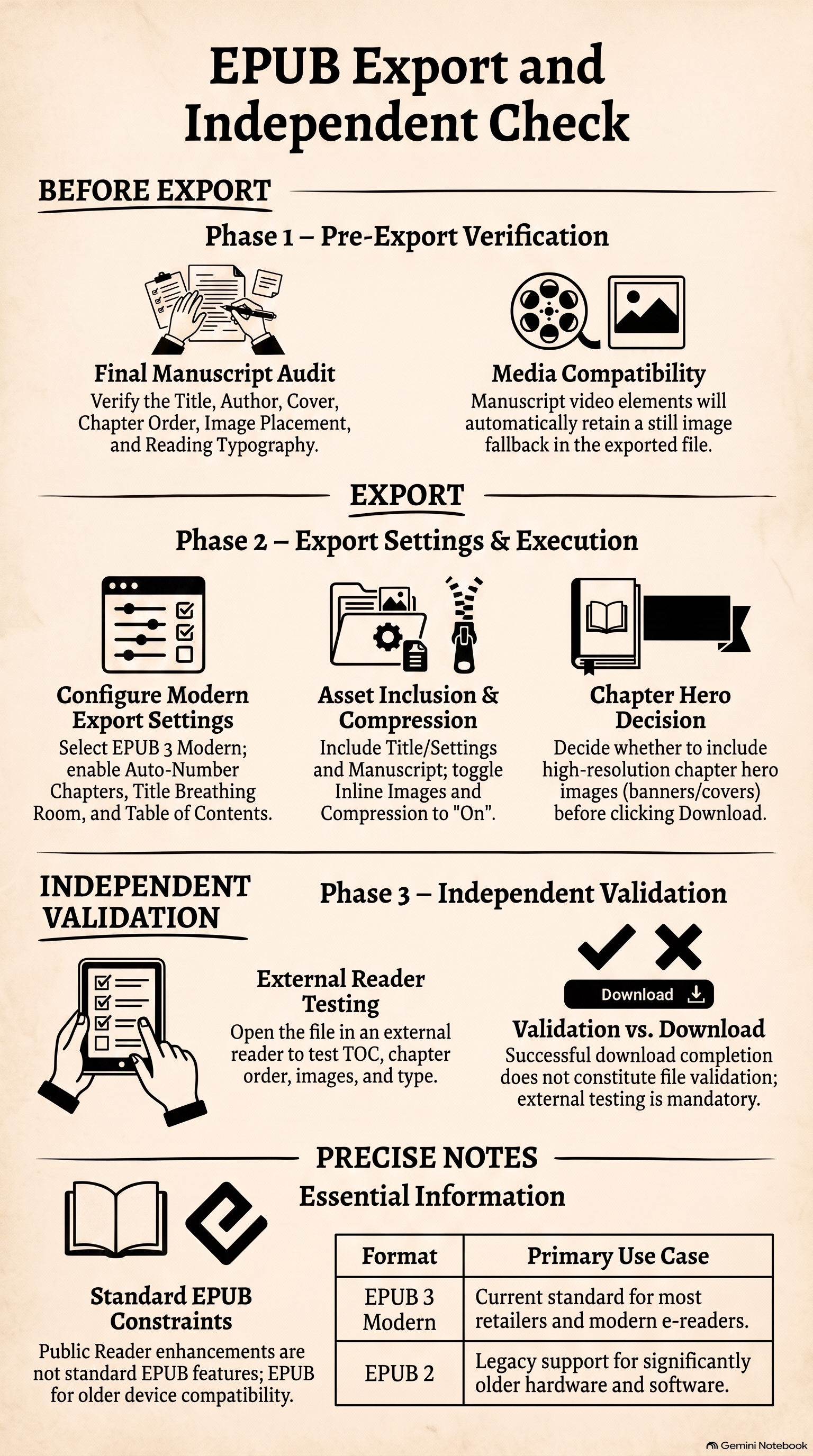
EPUB Export and Independent CheckInfographic · 5.1 MBExporting and Checking an EPUB from Pen & Muse StudioVideo · 7.1 MB
Exporting and Checking an EPUB
An export is finished only when an independent reader opens the book correctly.
Review Auto-Number Chapters, Add Title Breathing Room and Include Table of Contents.
Include Project Title & Settings and Manuscript Text.
Decide deliberately whether to include chapter hero images.
Keep inline chapter images and image compression enabled unless testing proves another choice is necessary.
Choose Download.
Open the file in an independent EPUB reader.
Test the table of contents, chapter order, images and intended typography.
What this does not do
Download success alone is not validation. EPUB 2 remains available for older compatibility. Manuscript video keeps a still fallback; public Reader enhancements are not ordinary EPUB features.
Verification checklist
The external reader opens the file.
Navigation and chapter order are correct.
Images and intended type survive the package.
Artifacts
Video:Exporting and Checking an EPUB from Pen & Muse Studio, 1:31, one Studio source.
Infographic:EPUB Export and Independent Check.
Making the EditionConfirmed complete
From Studio Edition to Pen & Muse Store
Prepare one versioned edition for press review and follow the separate application that changes the public Store.
Guide
O15
Video
1:10
Updated
2026-08-14
Watch and download
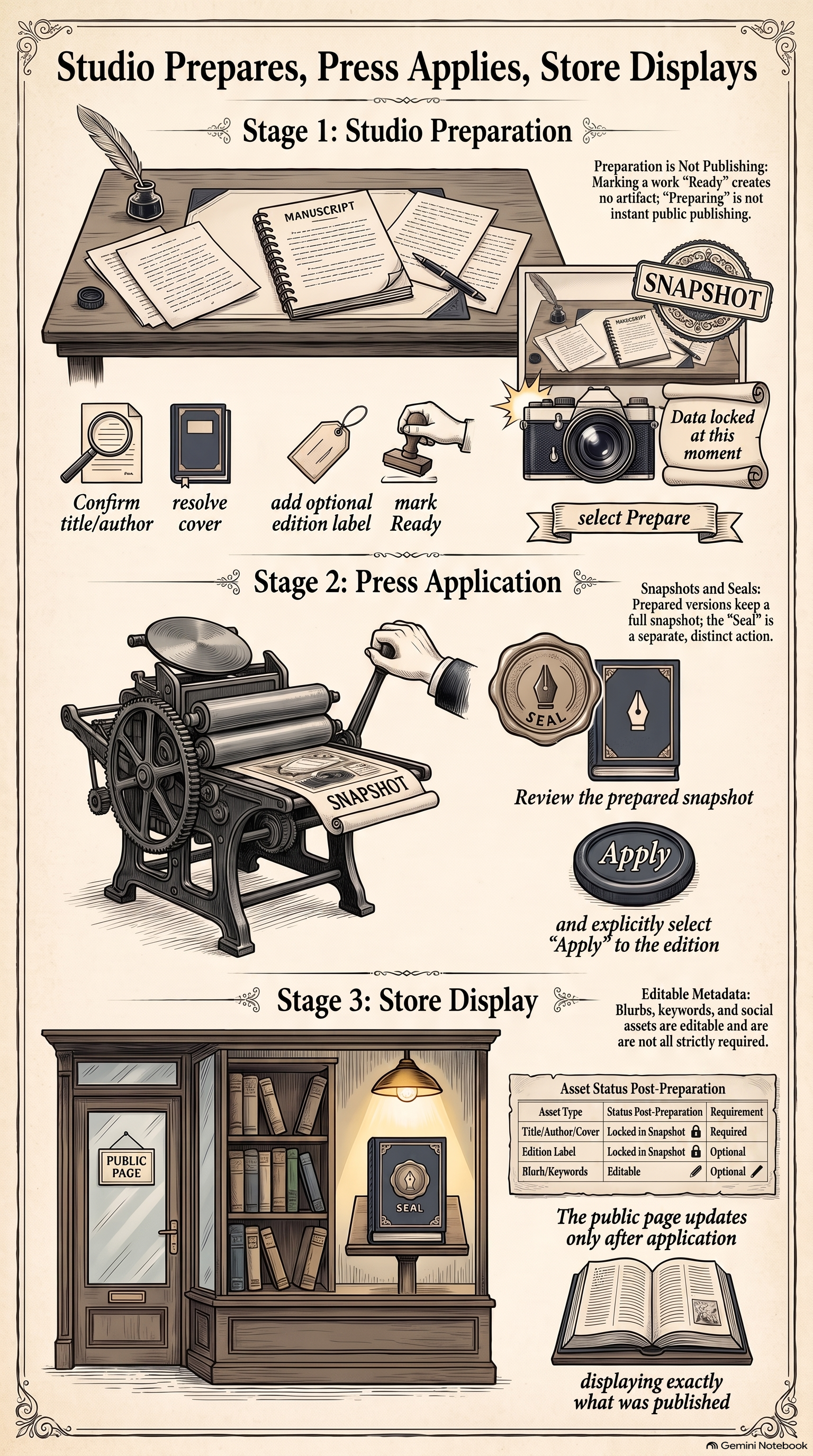
Studio Prepares, Press Applies, Store DisplaysInfographic · 6.5 MBFrom Studio Edition to Pen & Muse StoreVideo · 3.8 MB
From Studio Edition to Pen & Muse Store
Studio prepares the edition; the press applies it; the Store shows what was actually published.
Before you begin
Use a publication-ready copy with correct title and author details.
Resolve the saved-cover decision.
Procedure
Open Book Settings, then Project Workflow & Publishing.
Confirm title and author, resolve the cover and optionally name the edition.
Mark the project Ready.
Choose Prepare for Pen & Muse review.
Confirm that Studio creates a complete versioned update and retains its snapshot as an Edition.
Review the prepared edition through the separate press process.
Explicitly apply the approved edition.
Check the resulting public Store page only after application.
What this does not do
Ready alone creates no publication artifact. Preparing is not instant public publishing. Seal this edition is separate. Blurb, keywords and social assets remain editable and are not all required for preparation.
Verification checklist
The prepared edition has a retained snapshot.
The public Store remained unchanged before press application.
The Store reflects only the edition actually applied.
Artifacts
Video:From Studio Edition to Pen & Muse Store, 1:10, two Studio and Store sources.
Infographic:Studio Prepares, Press Applies, Store Displays.